Pick a Product Still
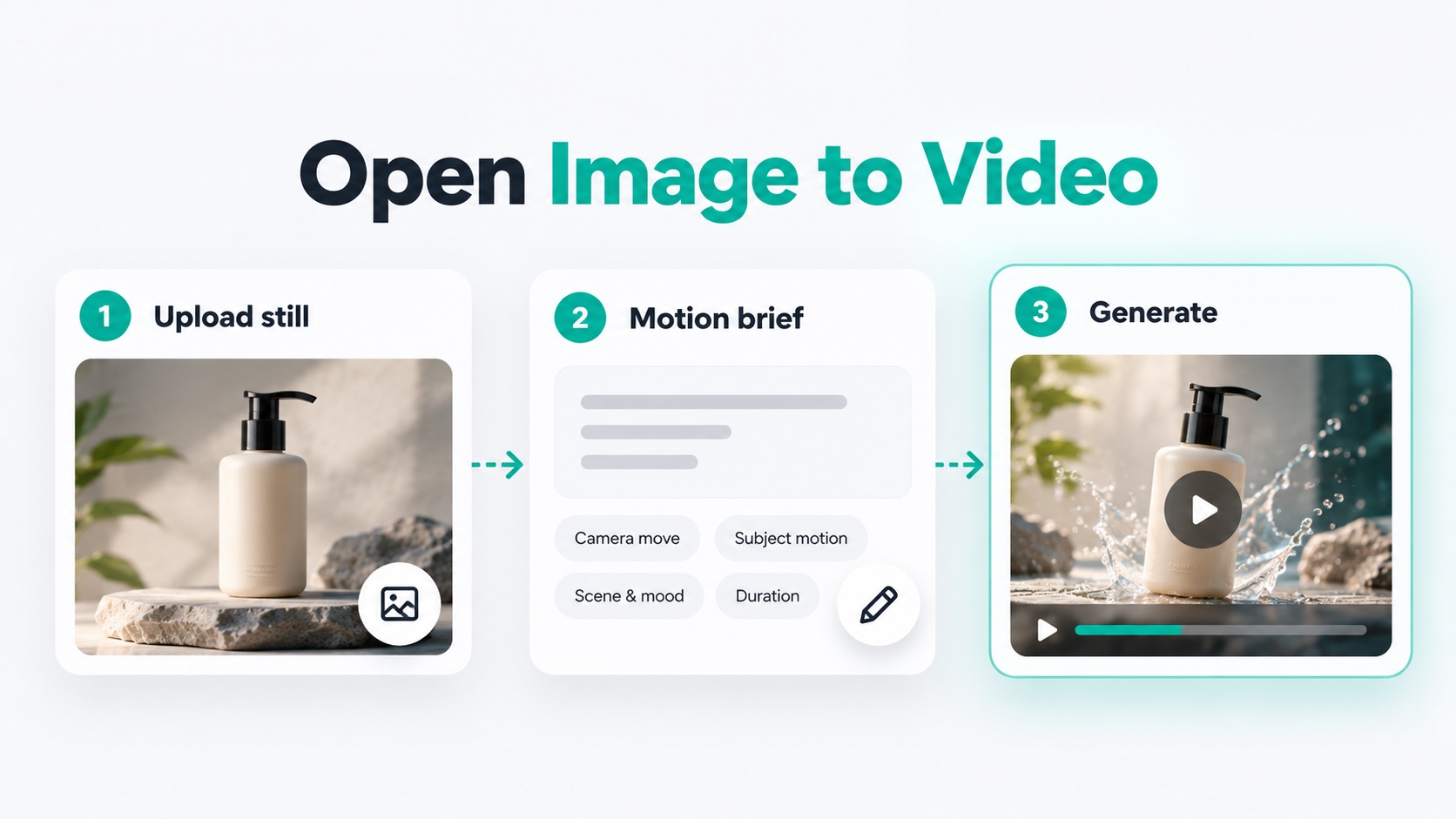
Quick take: Use Seedance 2.0 to turn one clean product still into a short ecommerce clip: pick a readable still → write motion that keeps label and silhouette stable → open Image to Video (or Create), select Seedance 2.0, upload the still, read the live credit estimate, and generate once. Model page: Seedance 2.0. First-clip habits: Seedance AI video generator. Credit math: Seedance 2.5 pricing (plans change—confirm live).
If you searched seedance 2.0 for product work, you usually need a still that moves—orbit, push-in, soft reveal—without rewriting the bottle, box, or logo. This guide stays on that job: product still → short motion on Seedance 2.0. It is not a “what is Seedance” overview and not a pricing sheet.
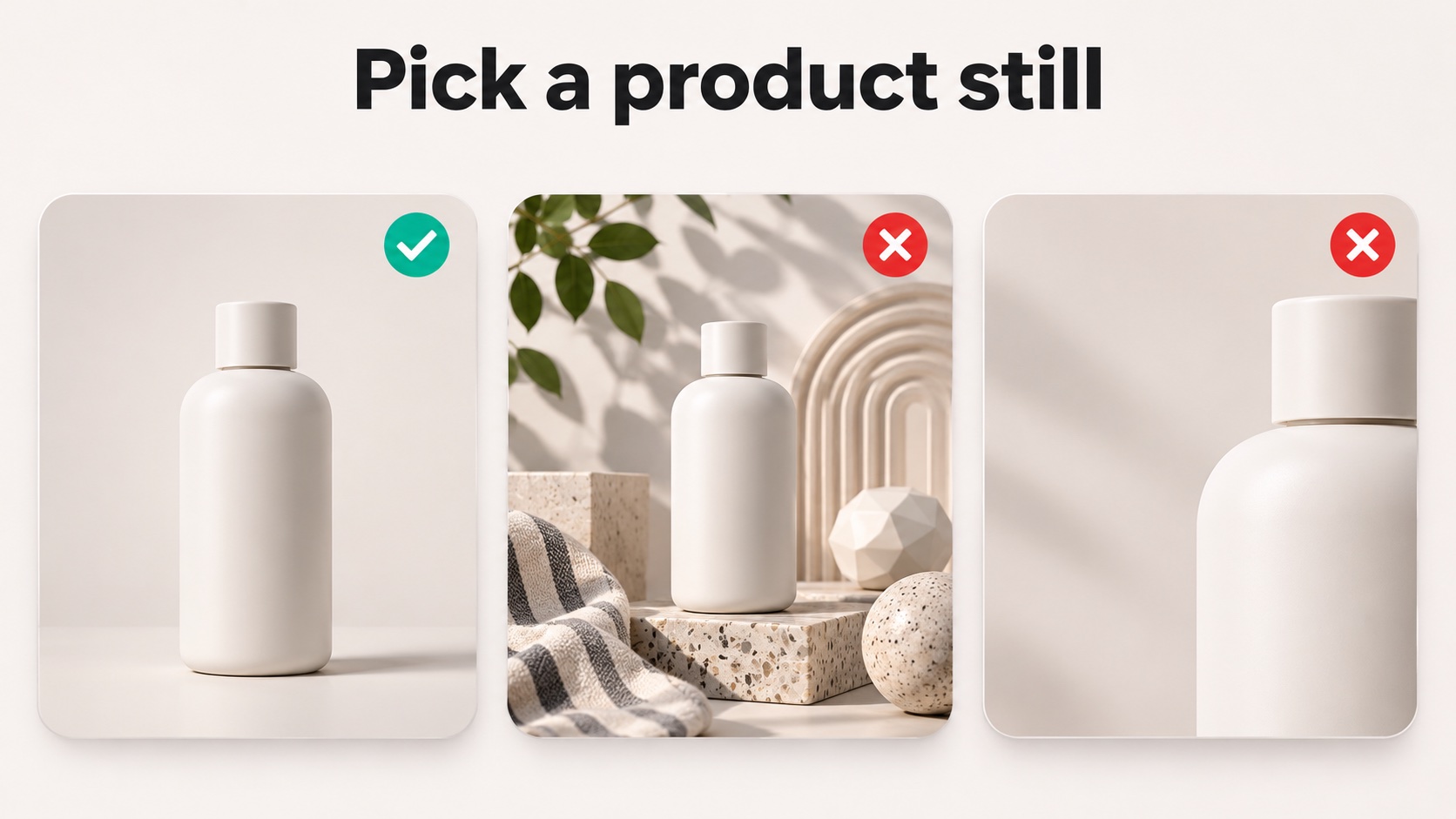
A strong product clip starts before you open the generator. The still decides how much of the label, silhouette, and material Seedance 2.0 can keep while it invents motion.
What to look for in the still
| Check | Prefer | Avoid for clip #1 |
|---|---|---|
| Subject | One hero SKU, fully in frame | Crowded shelf with tiny logos |
| Background | Clean table / seamless / soft gradient | Busy lifestyle clutter fighting the pack |
| Edges | Sharp silhouette, readable print | Heavy crop that cuts the logo |
| Lighting | Even studio or soft window light | Hard specular blowouts on the label |
| Aspect | Matches the output you need (1:1, 9:16, 16:9) | Extreme pan crops you plan to “fix later” |
Selection rule: if a shopper cannot read the brand mark in the still, do not animate yet—fix the crop or reshoot. Image-to-video inherits the still’s weaknesses.
Ecommerce stills that work well
- Packshot on seamless (bottle, jar, device, shoe).
- Flat-lay with one dominant object and clear negative space for a slow push-in.
- Close detail of texture (fabric weave, glass facets) when the material is the story.
Lifestyle frames can work after you prove the packshot path. For the first Seedance 2.0 pass, keep one product and one job: “show the pack turning” beats “tell a three-beat story.”
Prep checklist (two minutes)
- Export JPG/PNG/WebP with the product large in frame.
- Leave a little margin so a slow orbit or push-in does not clip the logo.
- Note the intended ratio (feed square vs story 9:16 vs landscape PDP).
- Decide the one motion you will ask for next section—do not invent five moves yet.
When the still is ready, keep the model context open on Seedance 2.0 and the workflow page on Image to Video. Generation itself happens in Create.
Write Motion Keep Appearance
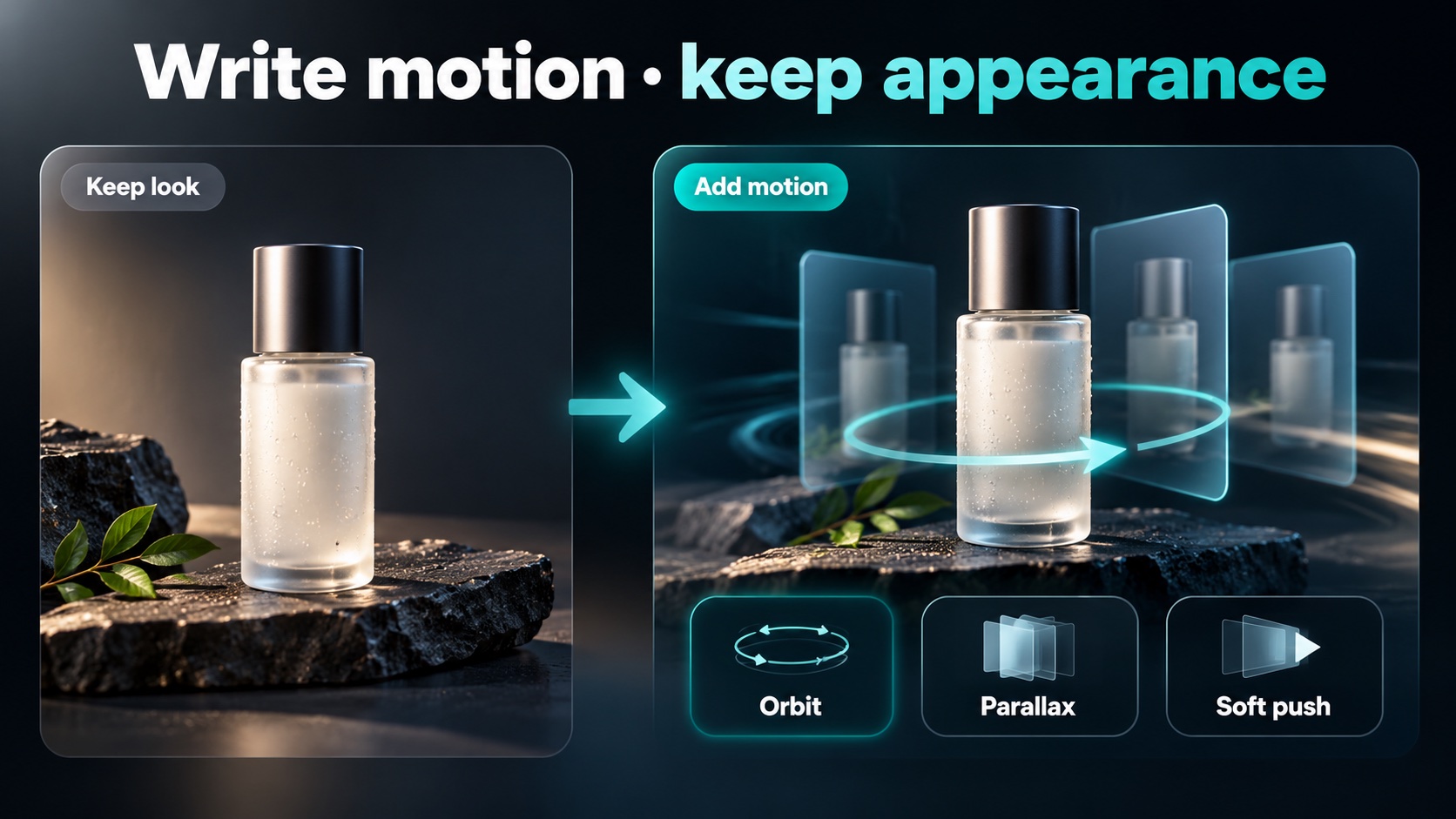
Image-to-video already “sees” the pack. Your prompt’s job is motion and constraints—not re-describing every color.
Prompt pattern that keeps appearance
Use three short lines:
- Preserve: brand mark, label layout, bottle shape, material (matte / glass / fabric).
- Subject motion: one physical change (slow turn, soft mist, fabric settle, lid catch light).
- Camera: one move (slow orbit, gentle push-in, locked tripod).
Example for a perfume bottle still:
Keep the bottle shape, gold label text, and glass reflections stable. Soft mist drifts past the neck. Camera slowly orbits 20 degrees clockwise. Clean studio look, no new logos, no extra props.
Example for a shoe on seamless:
Preserve the sneaker silhouette, sole pattern, and side logo. The shoe rotates slowly on its heel. Camera locked, eye-level. No background change.
Do / don’t for product fidelity
| Do | Don’t |
|---|---|
| Name what must stay readable | Rewrite the whole product as if starting from text-to-video |
| Keep one subject action + one camera move | Stack whip pans, cuts, and “epic” adjectives |
| Prefer short duration for clip #1 | Max length before you know the beat works |
| Say “no new text / no extra logos” when labels matter | Assume tiny print will stay perfect under big motion |
First / last frame vs single reference
On this site, Image to Video can use a reference image set or first/last frames—treat them as separate input modes. For a single product still, start with one clear reference (or first frame only). Add a last frame only when you already know the ending pose and the UI exposes that mode. Mixed multi-reference stacks are better after the simple still→motion pass succeeds.
When appearance breaks
| Symptom | Change only this | Keep locked |
|---|---|---|
| Logo warps / melts | Shorter motion; stronger “preserve label” line | Same still |
| Extra objects appear | “No new props / no extra logos” | Camera move |
| Pack drifts off-center | Milder orbit or locked camera | Duration |
| Material looks wrong | Name material explicitly (brushed metal, frosted glass) | Subject |
Credits and plan bands are not fixed in a blog—confirm the live estimate in the generator and, when you need plan math, skim Seedance 2.5 pricing then re-check the on-site quote. Beginner selection habits: Seedance AI video generator.
Open Image to Video
This is the executable path on seedance2video.ai. Settings and credit costs change with model, duration, and resolution—always trust the live estimate on screen.
Step-by-step
- Open Create (or start from Image to Video and continue into the workspace).
- Select Seedance 2.0 in the model selector (standard vs Fast differ mainly in speed / resolution menus—compare the live options). Model story: Seedance 2.0.
- Switch to Image to Video / upload references. Add your product still (JPG, PNG, or WebP). Stay within the uploader’s file-size and count limits.
- Paste the preserve + motion + camera prompt from the previous section.
- Set a short duration first (a few seconds is enough to judge label stability). Pick ratio to match the still’s crop. Choose resolution you actually need for the channel.
- Enable audio only if the clip needs ambience or a soft whoosh; many PDP loops stay silent.
- Read the credit cost shown for the current settings. Change duration or resolution and watch the estimate update. Figures elsewhere are not a substitute for this number.
- Sign in if prompted, submit once, and watch the full clip for logo readability and silhouette drift.
- Download from the workspace, or return later via My Creations when signed in.
Review checklist before you spend again
- [ ] Brand mark still readable mid-clip
- [ ] Silhouette matches the still
- [ ] Only the motion you asked for appears
- [ ] Crop still fits the target placement (PDP, story, feed)
- [ ] Next change is one variable (prompt line, duration, or camera)—not five
When to stay on 2.0 vs look at longer lines
Seedance 2.0 fits short product scenes (roughly 4–15 seconds on this site) with image references guiding appearance. If you later need longer beats or heavier reference stacks, compare options on-site after the short still→motion test works. Do not jump plans mid-debug.
FAQ
Will every label pixel stay perfect?
The still guides the result; fine print can soften under large motion. Use restrained camera moves when typography is the hero.
Text-to-video for products?
Possible, but image-to-video from your real packshot is the direct path when appearance must match the SKU.
Where do I generate?
Create. Workflow framing: Image to Video. Model: Seedance 2.0.
Product CTA
Next step: pick one clean product still, write a preserve + one-motion + one-camera prompt, open Create, select Seedance 2.0, upload on Image to Video, read the live credit estimate, and generate one short clip. Revisit Seedance 2.0 for capability detail and Image to Video for motion habits. Home: seedance2video.ai.